



How To Cancel Grubhub Plus Membership

Subscription Manager Tool
Select a service, choose your subscribed date, and track your renewal easily.
Track smarter. Save more. Stay in control of your subscriptions.
Canceling Grubhub Plus is simple when you know where the membership option is located. Many users keep the subscription because it renews automatically, especially when they only signed up for a free trial or used it for a few food orders. Before canceling, check whether your Grubhub Plus plan was started directly through Grubhub, through Amazon Prime, or through an app-store subscription, because the cancellation path may be different.
Just $1.79. Lifetime Validity

You can also use our Subscription Manager to manage Grubhub Plus more easily. From the tool, select Grubhub, and you can check the estimated cost, calculate the next renewal date, view a cancellation guide, and find email or support details in one place.
If your Grubhub Plus membership is connected with Amazon Prime, Amazon says you can manage or cancel that Grubhub+ benefit through Amazon, and Grubhub support can also help with cancellation.

How To Cancel Grubhub Plus
Grubhub Plus gives users delivery benefits, lower fees, and special offers, but it may not be useful if you no longer order food often.
Canceling before the next renewal date helps avoid another monthly charge. You can cancel from the Grubhub mobile app or the desktop website, depending on where you usually manage your account.
Always confirm the cancellation screen and check your email afterward, so you know the membership has stopped successfully.
1. From the Grubhub+ Web
Canceling from the desktop is better if you want a clearer view of your account settings, billing details, and renewal information.
This method works well when the app does not show the full membership page properly.
Use the official Grubhub website, sign in to the correct account, and review the membership section carefully before confirming cancellation.
Step 1: Firstly, log in to Grubhub.
Using your login ID and password, open Grubhub and log in to your Plus membership account.
Step 2: Go to the “Account” section.

After logging in, roll your eyes to the upper right corner of the screen to the place where your name is displayed. Ex: “Hi! Jim”
Over there, click on the drop-down arrow and come to the last option in the list, which is “Account” with a settings icon. Tap on it.
Step 3: Select the “Grubhub+ membership” option from the list.
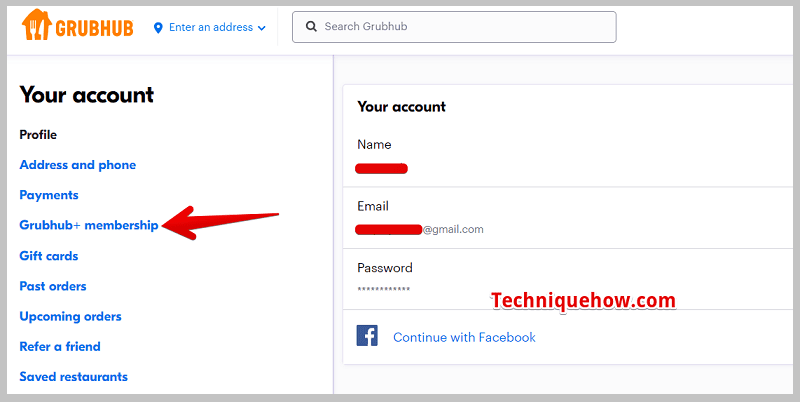
Under the account section, you will see the number of options and details of your account.
Now, you have to pay attention to the left side of the screen which is displayed as “Your Account”, there, find and hit the Grubhub+ membership option. Open it.
Step 4: Tap on the “End Subscription” option.
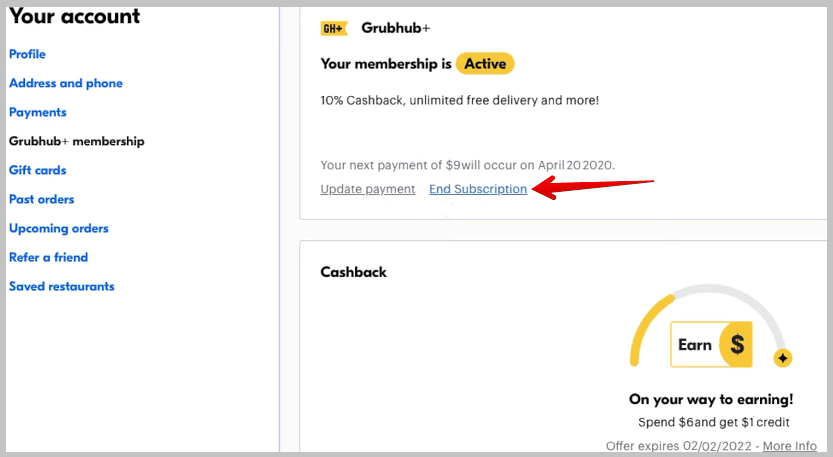
On the consecutive page, you will get all your membership details, and your next payment date.
Now, you have to click on the option that says “End Subscription”. Once you hit that option, it will ask you for the reason to cancel and your confirmation as well. Select the reason from the list and hit the ‘Cancel membership’ button.
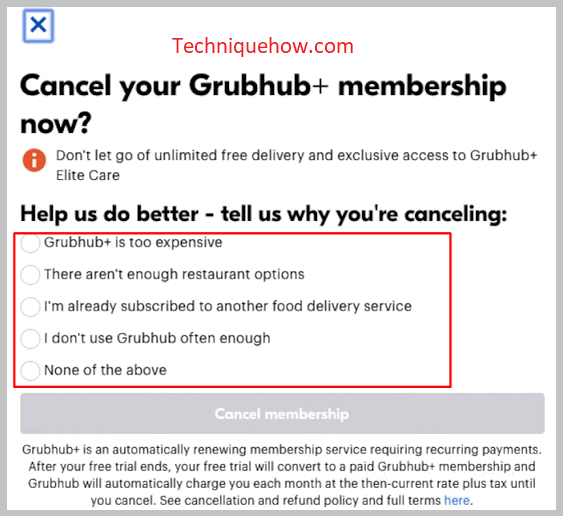
In a while, you will notice a notification of successful cancellation on your screen, and you are done.
2. Cancel On Mobile
Using the Grubhub mobile app is usually the fastest way to cancel Grubhub Plus because most users manage orders, payments, and membership details from their phone.
Make sure you are logged into the same account that has the active subscription.
If you do not see the cancel option, check whether your plan was started through Amazon, Apple, or another billing method.
Step 1: Open the Grubhub App.
First of all, open the Grubhub app on your mobile phone. Log in if not logged in.
Step 2: Open the “My Grubhub+” from the list of icons below.
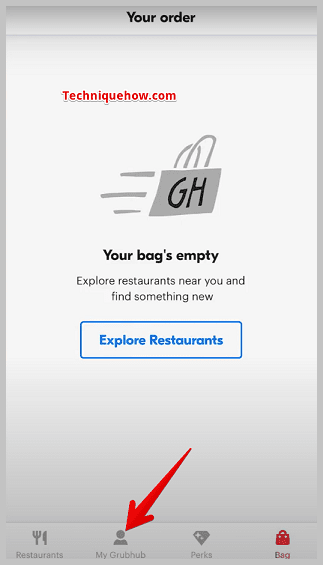
Once you have opened the app, you will find multiple icons. There, select “My Grubhub” & open it.
Step 3: Tap on the “Settings” gear icon.
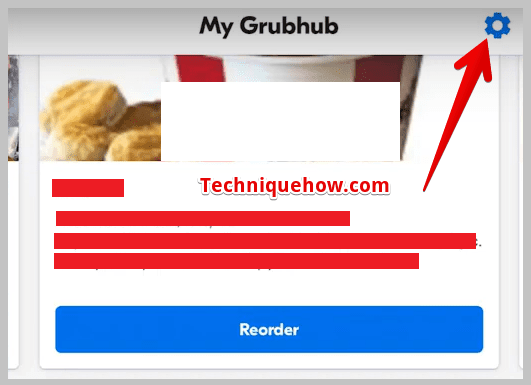
On my Grubhub page, in the very top right corner, you will find a settings icon. Tap on that icon and open the settings page.
Step 4: Select “Grubhub+ membership” from the list.
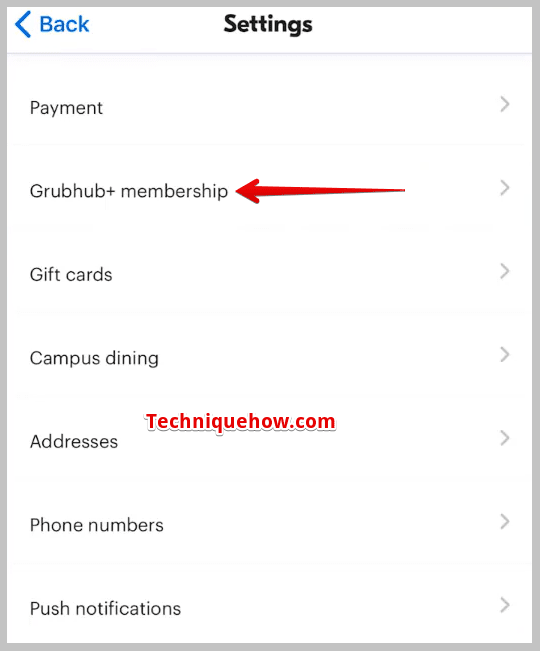
On the settings menu list, you will see the number of options. You need to select the one which says, “Grubhub+ membership”, tap on and open it.
Step 5: Tap on > “Cancel Membership”.
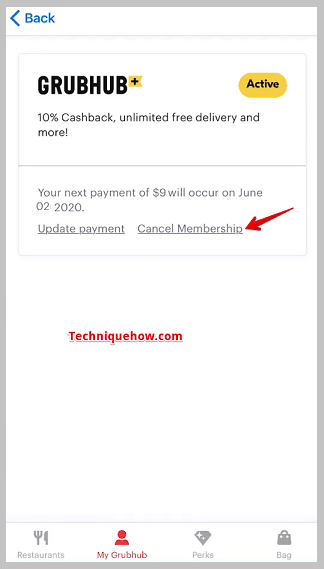
On the consecutive page, you will get all your membership details, your next payment date, and your activation status.
Now, you have to click on the option that says “Cancel membership”. Once you hit that option, it will ask you for the reason to cancel and your confirmation as well. Select the reason from the list and hit the cancel button.
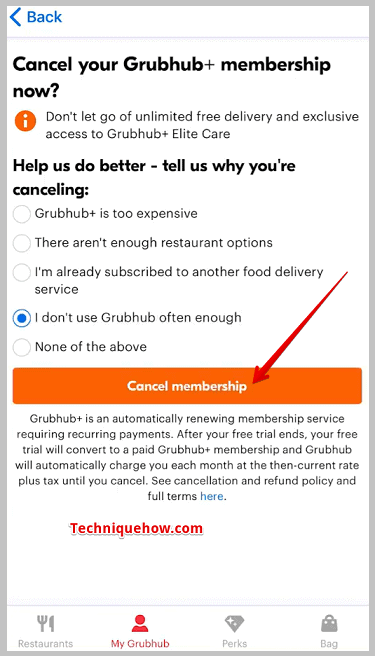
In a while, you will notice a notification of successful cancellation on your screen.
3. Contact support Instead
If you’re having trouble canceling Grubhub+ through the app or website, reaching out to customer support is a reliable option. You can contact them via live chat, email, or phone to request cancellation. When reaching out, provide your account details, such as your registered email, to speed up the process.
The support team might try to offer promotions or discounts to keep you subscribed, but you can politely decline and confirm the cancellation.
This method is useful if you’re facing issues like billing errors, unexpected charges, or technical glitches. It’s also the best choice if you want written confirmation of your cancellation.
While this approach takes a little longer, it ensures that your subscription is fully canceled without any confusion. Once your request is processed, you should receive an email confirmation. Always keep a record of this email in case of any disputes. Just follow the steps in detail
Step 1️⃣: First, visit the Grubhub customer support page.
Step 2️⃣: Click on “Contact Us” and select the appropriate category for your issue.
Step 3️⃣: Fill out the form with your information and a description of your issue.
Step 4️⃣: Click on “Submit” to send the form and wait for a response from customer support.
📢 Tips
If you don’t get a response within 24 hours, follow up to ensure your request is being processed. Ask for a cancellation confirmation number or email to have proof of the request.
4. Through Google Play
If you subscribed to Grubhub+ through Google Play, you’ll need to cancel it from your Google Play account instead of the Grubhub app. Open the Google Play Store, tap on your profile icon, and go to Payments & Subscriptions > Subscriptions. From there, find Grubhub+ and tap Cancel Subscription to complete the process.
Since Google Play manages your billing, canceling directly through Grubhub won’t work. This method is ideal for Android users who subscribe through their Google accounts and want a quick, hassle-free cancellation. Be sure to cancel at least 24 hours before your next billing cycle to avoid extra charges.
Once canceled, you’ll still have access to Grubhub+ benefits until your current billing period ends. Google will send an email confirming the cancellation, so check your inbox for verification.
You can also cancel the membership through the Google Play Store.
Step 1️⃣: First of all, open the Google Play Store on your mobile device.
Step 2️⃣: Tap on the three horizontal lines in the top left-hand corner of the screen to open the menu.
Step 3️⃣: Select “Subscriptions” from the menu and find the Grubhub Plus subscription and tap on it.
Step 4️⃣: Tap “Cancel” and follow the prompts to complete the cancellation.
📢 Tips
There is another best way is, to do nothing and wait for your Grubhub Plus subscription to expire. Your subscription will not renew at the end of the current billing cycle.
🔯 Grubhub Plus Membership Cost:
Grubhub offers different types of membership along with exciting benefits. Grubhub is partnered with many 3-star to 5-star restaurants and hotels. The customers who fit the sole discretion and eligibility requirements get the free trial.
Once the trial periods are over, you will be converted to a paid Grubhub+ membership. If you do not get the chance of a free trial, Grubhub will automatically charge you when you become a Grubhub+ member.
The cost of a Grubhub+ membership currently is $9.99 per month plus applicable tax. Also, the customers get free delivery on orders above $12+.
Choosing the Best Method to Cancel Grubhub Plus:
1. Using the Grubhub App or Website
If you want a fast and hassle-free way to cancel, the Grubhub app or website is the best option. Go to “Account,” click on Grubhub+, and tap Cancel Membership—done in seconds. This method is perfect if you prefer a simple, guided process with no extra steps.
2. Contacting Customer Support (For Account Issues)
If you’re having trouble canceling through the app or website, you can reach out to Grubhub support. I can email them or use the live chat to request cancellation. This works best if I need extra help or have billing concerns.
Frequently Asked Questions:
Try emailing Grubhub support with “Request to Cancel Grubhub+” as the subject. Include your account email and ask them to cancel for you.
No, Grubhub+ doesn’t offer refunds once a payment is processed. You’ll still have access to perks until the end of your billing cycle. Only new users on a free trial may be eligible for a refund.
Yes! Open the Grubhub app, go to Account, and tap Grubhub+. Then, select Cancel Membership and confirm your choice.