


How To Know If Someone Stopped Sharing Location On Snapchat

Snapchat’s location-sharing feature, known as Snap Map, is designed to help friends stay connected by allowing them to see each other in real-time. However, when someone’s location suddenly disappears, it often raises questions. Since Snapchat does not notify users when someone stops sharing their location, the only way to understand what happened is by observing clues and using a few smart checks.
Just $5. Lifetime Validity
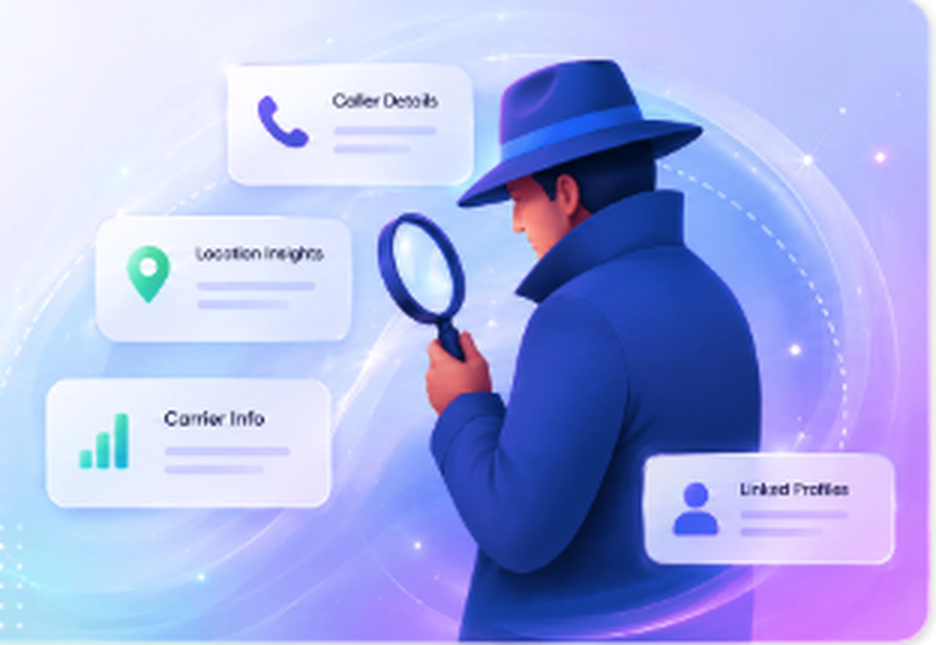
Location sharing on Snapchat is entirely user-controlled, meaning anyone can choose who can or cannot view their location at any time. They may hide their location for privacy, switch to Ghost Mode temporarily, restrict specific friends from seeing them, or even remove you from their friend list—each of which results in their location becoming invisible to you.
Because there are multiple reasons why someone’s location disappears, detecting the exact cause requires comparing how their profile behaves on your account versus on other accounts, looking at their Bitmoji activity, and paying attention to how Snap Map updates normally work.
In many cases, the disappearance is harmless—a drained battery, poor network, or the person simply hasn’t opened Snapchat recently. But in other cases, it may indicate that they intentionally stopped sharing with you by customizing their location settings.
By using methods like checking from another Snapchat account, observing their Bitmoji status, or initiating a light chat to see if Snap Map refreshes, you can get a clearer idea of whether they turned location off completely or only stopped sharing it with you.
This guide explains every sign, trick, and method to help you confidently know if someone has stopped sharing their location on Snapchat.
How To Know If Someone Stopped Sharing Location On Snapchat?
It is often confusing when a friend’s location suddenly disappears on Snapchat, and many people wonder whether they turned off their location or removed specific users. This guide helps you figure out the most common signs, easy checks, and practical steps that show whether someone has stopped sharing their location with you.
1. Finding From Snap Map
It might help to first look directly at the Snap Map, because this is the simplest way to see whether a user still shares their location. This map shows live Bitmojis of active friends, but once a Bitmoji disappears, it often signals a change in visibility settings. Some users choose Ghost Mode, which hides them from everyone, so you won’t see their marker anywhere.

One thing you can try is checking from another Snapchat account, because if the person’s location appears on the second account but not on yours, it suggests they intentionally restricted your visibility. In several cases, the map not updating for over 24 hours also shows that location sharing has stopped or timed out due to inactivity. So the map becomes the easiest indicator.
2. Creating Another Account
This can be another useful method when you suspect someone has hidden their location specifically from you. Snapchat allows users to select exactly who may see their location, so exclusion is possible without their knowledge. Some find it helpful to create a second account with a neutral or fake name, because the person you are checking is unlikely to restrict a new, unknown profile. The second account is set up cleanly with no connection to your original profile. After sending a friend request, you can simply wait for them to accept.
Once accepted, you can open Snap Map to compare the results. If the location appears for the new account but not the old one, the person excluded only your primary profile. This becomes a clear confirmation.
3. Start Chatting & Find Location
It can also help to start a quick conversation once the person accepts your request, because chatting activity sometimes refreshes presence indicators. Some people notice that when a user becomes active during chat, their map position updates soon afterward. One thing you might do is send casual, friendly messages—not anything suspicious—so the other user responds normally.
This natural interaction ensures that the user is online and active, ruling out inactivity as the reason their location is missing. After a few exchanges, you can return to Snap Map and check whether their Bitmoji appears again. Many users keep their map updates tied to app usage, so talking to them helps you test this. But if the map still shows nothing, it strongly suggests they disabled location sharing entirely or restricted specific viewers.
4. Checking for Ghost Mode Signs
It is possible that the person did not block only you, but instead enabled Ghost Mode for all friends. This mode hides their location globally with no exceptions. Many users activate Ghost Mode temporarily for privacy, travel, or safety reasons.
Some users also manually disable location permissions in their phone settings, which forces Snapchat to stop reporting their location entirely. This means their Bitmoji will vanish from the map, even though they remain friends with everyone. If you notice that the user still posts snaps and interacts normally but never appears on the map, Ghost Mode becomes the most likely explanation. So, paying attention to overall visibility patterns helps you understand whether it is a personal restriction or a global privacy choice.
How To Tell If Someone Is In Ghost Mode On Snapchat?
You might notice someone stops appearing on Snap Map, and that often makes people wonder if Ghost Mode is active. It becomes confusing because Snapchat never alerts anyone when this mode is turned on. This helps users stay private, but friends then try identifying clues quietly.
1. Profile Would Not Show Snap Map Option
You can first check the person’s profile because Ghost Mode immediately removes their live presence from the Snap Map, leaving no option for updated location visibility. It usually means their map status freezes and then disappears after a short period.
This works because Snapchat only displays location when the user has actively shared it. Users assume someone blocked them, but missing Snap Map visibility is typical of Ghost Mode instead.
One thing you can confirm is that you will still see your own map normally, while theirs stays unavailable.
2. Bitmoji Changes to a Blue Sign

You might observe that their Bitmoji is no longer visible on the map, replaced instead by the small blue Ghost Mode indicator. Snapchat substitutes the Bitmoji image with a blue symbol whenever someone stops broadcasting location.
This allows the user to remain private without deleting the map feature. Many people misunderstand the symbol, believing it signals connection errors rather than privacy settings.
The thing that clarifies it is noticing the Bitmoji instantly reappears once Ghost Mode is disabled and active location sharing returns.
3. Friends Don’t Receive Location Notifications
You might notice that location-based notifications stop appearing, which happens because Ghost Mode blocks all updates from reaching friends. It prevents Snapchat from refreshing the user’s position, leaving the last shared location frozen until the system removes it automatically.
Friends may expect alerts when someone returns home or moves, but Ghost Mode stops those entirely. You can rely on the absence of any movement indicators strongly suggests they enabled this privacy setting.
What Happens When Someone Turns Off Their Location or Stops Sharing
You might notice someone’s location suddenly stops updating on Snap Map, and this usually happens when they disable sharing. It creates confusion because Snapchat never alerts friends about these privacy changes. This leaves people guessing until they realize the map simply reflects the last known activity.
1. Location Disappears or Freezes on the Map
You can first observe whether their location freezes for an unusually long time, because Snapchat stops refreshing it once the user turns off location sharing. It may show the last timestamp before disappearing entirely from the map interface. People mistake this for a network issue, but consistent stalling usually signals intentional privacy changes. Other friends’ locations keep updating normally, showing the issue is specific to that particular user’s map visibility settings.
2. Bitmoji Might Vanish or Show Last Active Time
You might notice the person’s Bitmoji vanishes because Snapchat hides it when the user decides to stop sharing their location. It sometimes still shows a timestamp indicating when they were last active before going private.
This timestamp helps friends understand the last moment the map captured movement. Many users see this shift and assume they were removed, but disappearing Bitmoji usually reflects privacy control instead of social changes.
3. No Notification Is Sent When Sharing Stops
You might expect Snapchat to alert you when someone disables location, but the app purposely avoids sending such notifications to protect user privacy. It means friends stay unaware until they manually check the map and notice missing updates.
Many assume their friend hid them specifically, yet the platform never reveals who can or cannot view location settings. One thing that remains the most reliable approach is simply asking the person directly if you genuinely need clarity instead of guessing.
Frequently Asked Questions:
When a Snapchat user pauses or freezes their location, their Bitmoji remains stuck at the last place they were active. You won’t see real-time changes or movement. This is usually a good hint that they’ve turned off live updates or enabled Ghost Mode, either temporarily or permanently.
You might see a “No location available” message or simply not be able to view their location at all. This usually means they’ve disabled location sharing in their settings. Keep in mind it could also happen due to poor internet connection or phone settings that restrict location access.
No Snapchat doesn’t let you know who looks at your location on the Snap Map. The platform doesn’t offer any feature that shows who tapped your Bitmoji or viewed your map activity. If you’re worried about privacy, you can manage your location settings through Ghost Mode or choose who can view your location.